| Author | Thread |
|
|
11/21/2008 10:33:09 PM · #1 |
I was just recently out taking pictures in Oregon with my Canon EOS 300D Rebel SLR Camera. I've just recently upgraded my photoshop version from "7" to "CS2". I took some great pictures, and in the hopes of showing them to my friends, printed them out from my "Epson RX595 Color Inkjet Printer". Anyway, I've never before printed with CS2, pictures come out correctly when I printed in 7, but this time, when they came out, the images had a slight color disorder, they were slightly "Speia" looking, and some of them came out on two sheets of photopaper. (Dispite the fact there was still space left at the bottom of the page). The tones look fine in Photoshop, but when they are printed, everything looks odd.
I don't know what to do and all I'm trying to accomplish is print three photos. I'm new to CS2 and if someone could give me a breif tutorial on the steps I need to take to print a photograph. Thanks in advance!
|
|
|
|
11/21/2008 11:11:42 PM · #2 |
Originally posted by ColemanGariety:
The tones look fine in Photoshop, but when they are printed, everything looks odd.
|
Can't help on a tutorial. I had endless problems trying to get CS2 and then CS3 to print correct colors, even with spectrophotmeter calibration of monitor and printer. May have been my lack of sufficient expertise. Resolved all problems by using QImage to print images. Color comes out just as calibrated workflow should. Also excellent for resizing, although the user interface takes a bit of study to figure out. |
|
|
|
11/22/2008 03:24:52 AM · #3 |
Was the right profile chosen for the paper?
Were the right settings chosen in the Print with Preview window?
Was the right paper size chosen?
Was the image sized right to fit the paper?
BTW, QIMAGE is a very good program for printing if you print packages (several images/sizes per page) often as it makes it very easy.
Message edited by author 2008-11-22 03:26:13. |
|
|
|
11/26/2008 11:46:17 PM · #4 |
OK - I am totally new to this digital thing but I may have a possible solution. Perhaps not as finely or professionally tuned. But it worked for me.
I just downloaded Lightroom 2 trial. I actually am really liking it. Even though there are things there I do not yet understand I can still intuit and manipulate them (based on my previous film photography experience). So I got a shot all worked out ON THE DISPLAY and printed it to my Epson R220. God it was nothing like what the monitor showed.
So I did some digging.
When in Lightroom I chose Print Settings.
Selected my Epson R220 and then clicked on Advanced.
I OKd the "warning" Epson has with this printer that Advanced should be used by folks who know what they're doing.
I then saw the Color Management section in the Advanced window. It was set to Color Controls as a default.
I selected ICM
The resultant printout was very very close to what the monitor displayed.
Selecting Help on the ICM option (the "?") says that it uses the Windows color matching method to print on your printer what your monitor displays.
I literally just found this about 10 minutes ago. No idea if it can be made a default. Please try it and lettuce know the result?
Message edited by author 2008-11-27 00:00:55. |
|
|
|
11/27/2008 02:10:49 AM · #5 |
Originally posted by Canopic:
OK - I am totally new to this digital thing but I may have a possible solution. Perhaps not as finely or professionally tuned. But it worked for me.
I just downloaded Lightroom 2 trial. I actually am really liking it. Even though there are things there I do not yet understand I can still intuit and manipulate them (based on my previous film photography experience). So I got a shot all worked out ON THE DISPLAY and printed it to my Epson R220. God it was nothing like what the monitor showed.
So I did some digging.
When in Lightroom I chose Print Settings.
Selected my Epson R220 and then clicked on Advanced.
I OKd the "warning" Epson has with this printer that Advanced should be used by folks who know what they're doing.
I then saw the Color Management section in the Advanced window. It was set to Color Controls as a default.
I selected ICM
The resultant printout was very very close to what the monitor displayed.
Selecting Help on the ICM option (the "?") says that it uses the Windows color matching method to print on your printer what your monitor displays.
I literally just found this about 10 minutes ago. No idea if it can be made a default. Please try it and lettuce know the result? |
This defeats the whole purpose of colour management and the use of colour profiles. Printing should be managed by Photoshop/Lightroom (PS:set in the print with preview window under colour management, LR: set in the print module) and ICM turned off in the printer driver.
As a first step, the monitor needs to be calibrated.
What needs to be set in the printer driver is the correct paper type and size.
What needs to be set in Photoshop/LR is the correct printer profile. Photoshop?LR will then convert the colour numbers in the embedded profile to those of the profile chosen for the printer.
Message edited by author 2008-11-27 02:12:34. |
|
|
|
11/27/2008 02:19:47 AM · #6 |
If the problems came after you switched to Adobe CS2, why do you Damn Epson?
It is clearly Adobe screwing your settings and not Epson.
Try to find the setting with "Let the printer determine the color settings", then set up your printer driver correctly. About the size, check what is said in the print preview and page options. Also always print with a preview.
|
|
|
|
11/27/2008 02:21:51 AM · #7 |
Originally posted by cpanaioti:
Originally posted by Canopic:
OK - I am totally new to this digital thing but I may have a possible solution. Perhaps not as finely or professionally tuned. But it worked for me.
I just downloaded Lightroom 2 trial. I actually am really liking it. Even though there are things there I do not yet understand I can still intuit and manipulate them (based on my previous film photography experience). So I got a shot all worked out ON THE DISPLAY and printed it to my Epson R220. God it was nothing like what the monitor showed.
So I did some digging.
When in Lightroom I chose Print Settings.
Selected my Epson R220 and then clicked on Advanced.
I OKd the "warning" Epson has with this printer that Advanced should be used by folks who know what they're doing.
I then saw the Color Management section in the Advanced window. It was set to Color Controls as a default.
I selected ICM
The resultant printout was very very close to what the monitor displayed.
Selecting Help on the ICM option (the "?") says that it uses the Windows color matching method to print on your printer what your monitor displays.
I literally just found this about 10 minutes ago. No idea if it can be made a default. Please try it and lettuce know the result? |
This defeats the whole purpose of colour management and the use of colour profiles. Printing should be managed by Photoshop/Lightroom (PS:set in the print with preview window under colour management, LR: set in the print module) and ICM turned off in the printer driver.
As a first step, the monitor needs to be calibrated.
What needs to be set in the printer driver is the correct paper type and size.
What needs to be set in Photoshop/LR is the correct printer profile. Photoshop?LR will then convert the colour numbers in the embedded profile to those of the profile chosen for the printer. |
No it doesn't. The whole purpose is to edit on your screen and match as closely as possible on the paper. If you can achieve this with the beforementioned method, then what is the problem?
|
|
|
|
11/27/2008 03:10:21 AM · #8 |
This thread needs an image...
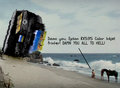 |
|
|
|
11/27/2008 03:14:11 AM · #9 |
Originally posted by Art Roflmao:
This thread needs an image...
|
But what will the monitors be calibrated to that are seeing that image? ROFLMAO!
|
|
|
|
11/27/2008 03:15:07 AM · #10 |
Originally posted by Canopic:
But what will the monitors be calibrated to that are seeing that image? ROFLMAO! |
Damn you, Canopic! DAMN YOU ALL TO... ah, nevermind. :) |
|
|
|
11/27/2008 03:24:00 AM · #11 |
Originally posted by cpanaioti:
This defeats the whole purpose of colour management and the use of colour profiles. Printing should be managed by Photoshop/Lightroom (PS:set in the print with preview window under colour management, LR: set in the print module) and ICM turned off in the printer driver.
As a first step, the monitor needs to be calibrated.
What needs to be set in the printer driver is the correct paper type and size.
What needs to be set in Photoshop/LR is the correct printer profile. Photoshop?LR will then convert the colour numbers in the embedded profile to those of the profile chosen for the printer. |
I do not get this, while having decades of film experience but only a week or so in real digital. But seriously, do you know what Lightroom has to say about calibrating a monitor? Here it is in its entirety:
==========
You can calibrate your monitor and create a profile that specifies its color characteristics using monitor profiling software and hardware.
When you calibrate your monitor, you are adjusting it so that it conforms to a known specification. Once your monitor is calibrated, the profiling utility lets you save a color profile.
If you are calibrating a CRT monitor, make sure it has been turned on for at least a half hour. This gives it sufficient time to warm up and produce more consistent output.
Set the ambient lighting in your room to be consistent with the brightness and color of the room lighting you’ll be working under.
Make sure your monitor is displaying thousands of colors or more. Ideally, make sure it is displaying millions of colors or 24-bit or higher.
Remove colorful background patterns on your monitor desktop, and set your desktop to display neutral grays. Busy patterns or bright colors surrounding a document interfere with accurate color perception.
Calibrate and profile your monitor using third-party software and measuring devices. In general, using a measuring device such as a colorimeter along with software can create more accurate profiles because an instrument can measure the colors displayed on a monitor far more accurately than the human eye.
Note: Monitor performance changes and declines over time; recalibrate and profile your monitor every month or so. If you find it difficult or impossible to calibrate your monitor to a standard, it may be too old and faded.
Most profiling software automatically assigns the new profile as the default monitor profile. For instructions on how to manually assign the monitor profile, refer to your operating system’s Help.
===========
That sounds like a hell of a standard. So I have to ask. Assume I DO calibrate my monitor. What assurance will I have that I will still get what I see to the printer? And what printer setting is recommended if one CAN calibrate the monitor (which seems to cost a fair bit of money for the software/hardware for a proper calibration.)
And if this works for Coleman's three prints he wants to make should he ignore the feature? I will tell you these are the kinds of things that really tick me off!
Message edited by author 2008-11-27 03:26:14. |
|
|
|
11/27/2008 03:53:02 AM · #12 |
Originally posted by Art Roflmao:
Originally posted by Canopic:
But what will the monitors be calibrated to that are seeing that image? ROFLMAO! |
Damn you, Canopic! DAMN YOU ALL TO... ah, nevermind. :) |
Go on...type it...you know you want to...HELL! There! Feels good, eh? :D |
|
|
|
11/27/2008 10:16:45 AM · #13 |
Originally posted by Canopic:
Originally posted by cpanaioti:
This defeats the whole purpose of colour management and the use of colour profiles. Printing should be managed by Photoshop/Lightroom (PS:set in the print with preview window under colour management, LR: set in the print module) and ICM turned off in the printer driver.
As a first step, the monitor needs to be calibrated.
What needs to be set in the printer driver is the correct paper type and size.
What needs to be set in Photoshop/LR is the correct printer profile. Photoshop?LR will then convert the colour numbers in the embedded profile to those of the profile chosen for the printer. |
I do not get this, while having decades of film experience but only a week or so in real digital. But seriously, do you know what Lightroom has to say about calibrating a monitor? Here it is in its entirety:
==========
You can calibrate your monitor and create a profile that specifies its color characteristics using monitor profiling software and hardware.
When you calibrate your monitor, you are adjusting it so that it conforms to a known specification. Once your monitor is calibrated, the profiling utility lets you save a color profile.
If you are calibrating a CRT monitor, make sure it has been turned on for at least a half hour. This gives it sufficient time to warm up and produce more consistent output.
Set the ambient lighting in your room to be consistent with the brightness and color of the room lighting you’ll be working under.
Make sure your monitor is displaying thousands of colors or more. Ideally, make sure it is displaying millions of colors or 24-bit or higher.
Remove colorful background patterns on your monitor desktop, and set your desktop to display neutral grays. Busy patterns or bright colors surrounding a document interfere with accurate color perception.
Calibrate and profile your monitor using third-party software and measuring devices. In general, using a measuring device such as a colorimeter along with software can create more accurate profiles because an instrument can measure the colors displayed on a monitor far more accurately than the human eye.
Note: Monitor performance changes and declines over time; recalibrate and profile your monitor every month or so. If you find it difficult or impossible to calibrate your monitor to a standard, it may be too old and faded.
Most profiling software automatically assigns the new profile as the default monitor profile. For instructions on how to manually assign the monitor profile, refer to your operating system’s Help.
===========
That sounds like a hell of a standard. So I have to ask. Assume I DO calibrate my monitor. What assurance will I have that I will still get what I see to the printer? And what printer setting is recommended if one CAN calibrate the monitor (which seems to cost a fair bit of money for the software/hardware for a proper calibration.)
And if this works for Coleman's three prints he wants to make should he ignore the feature? I will tell you these are the kinds of things that really tick me off! |
Let me put it to you this way. If your monitor is not calibrated then you will be spending time tweaking the printer driver to no end to get what you want with one image. This tweaking may or may not work with the next image you want to print. In the long run you will be wasting paper and ink trying to get the printer to show what you see on the monitor.
Printers work based on the colour numbers of a printer profile. If you are not using the profiles and the colour management provided in either the photo editing software or the printer driver then you are ignoring a powerful tool which will help you more than hinder you in getting good prints. However, this all starts with a calibrated monitor.
Having said that, if using the printer's ICM works for you and you are getting the results you want now, fine. This is not generally a one size fits all method so you may have to tweak the colour sliders for each image you want to print. |
|
Home -
Challenges -
Community -
League -
Photos -
Cameras -
Lenses -
Learn -
Help -
Terms of Use -
Privacy -
Top ^
DPChallenge, and website content and design, Copyright © 2001-2026 Challenging Technologies, LLC.
All digital photo copyrights belong to the photographers and may not be used without permission.
Current Server Time: 05/11/2026 04:35:34 PM EDT.




