Editing Steps:
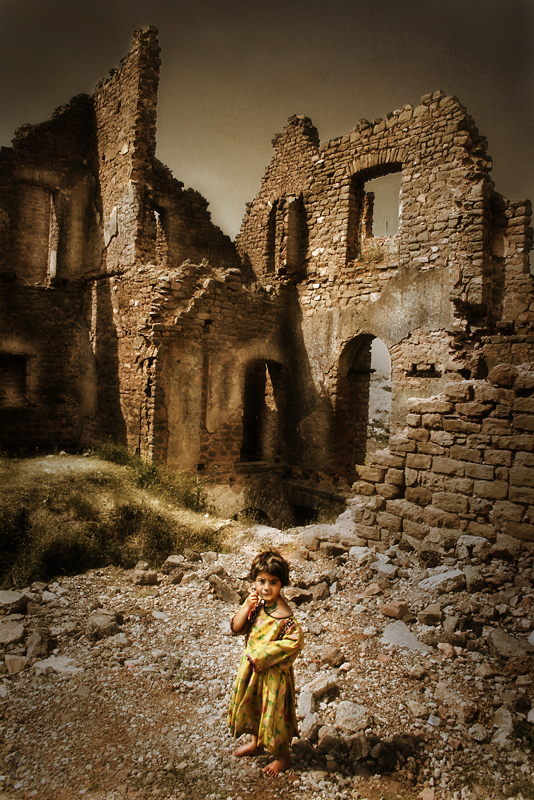
Duplicate layer and set to black and white. During conversion a dragged the cyan and blue sliders way down to really darken the sky and I dragged the yellow and red sliders up a bit to lighten the girl and wall some.
Next I set my new B&W layer to 67percent opacity. Then using a white layer mask I painted the girl and part of the foreground with black so I didn't lose the color on her face and dress because I wanted to bring her out from the background as much as possible.
I then created another layer from the original image and merged the top layer down so the layer mask disappeared and I had an image that looked like this.
Next I duplicated the layer and did some dodging and burning to add contrast and soften hard shadow lines. I also did a little burning to bring down the brightness of the back wall on the right.
Next I created a new transparent layer and set it to overlay. I then darkened much of the image by painting with a black brush with a low opacity on the layer. I also lightened part of the girls face with a white brush, and left her dress the same as it was before. Then I merged the layer down when I was happy with it.
At this point I didn't like how distracting the rocks behind her were so I duplicated the layer and added a Gaussian blur of 25 and then dropped the opacity of the layer, I erased the girl from the layer and parts of the wall. Then I merged the layer down and used selective levels to brighten the girl a little bit.
Next I duplicated the layer and did a lot of dodging and burning. Highlighting doors and enhancing texture in the wall, also to darken distracting bright spots.
After the dodge and burn layer I duplicated the layer again, this time I went to the Hue/Saturation window and selected the box that says colorize. I adjusted the sliders till I had a nice bright orange image. After I had clicked ok. I set the layer style to overlay. This gives the whole image a warmer overlay and adds contrast at the same time. Then I merged the layer down.
After this I did a levels layer to brighten it up a tad more, and then added a vignette using the burn tool.




 Add photograph to your favorites
 Add photographer to your favorites


 Photographer found comment helpful.
