Thanks for letting me play with your image, Becky! Here's a quick shot at what I was referring to in my comments:
- Add a new layer above your cropped image, fill that layer with a light gray and then apply the mosaic filter to it:
- Set that layer's blending mode to Overlay
- CTRL+T (Free Transform) that layer and hold down CTRL while dragging the corners to distort it into a similar perspective that the underlying image was shot at:
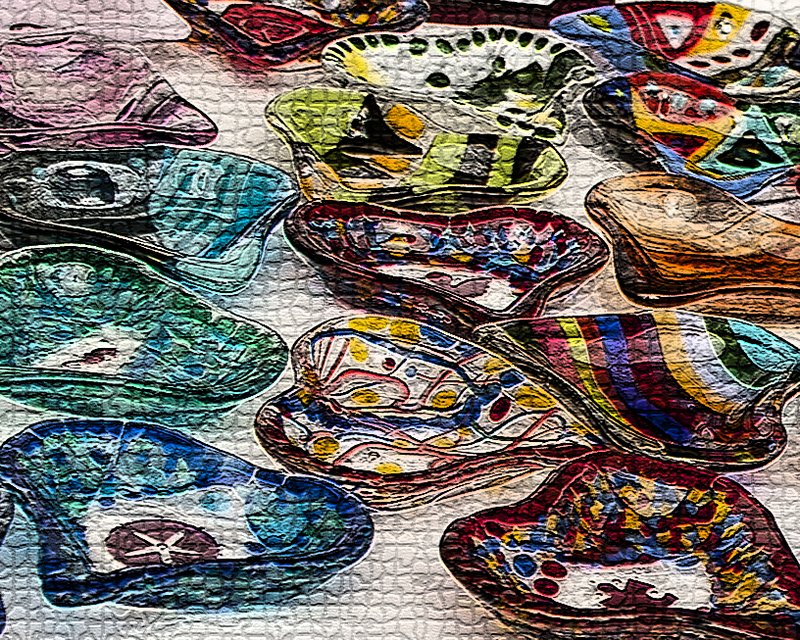
- Hit Enter to apply the transformation and voila:
- You can also play around with erasing the textured layer from the in-between parts:
or the objects themselves.
I'm still not convinced that texture works with the image, but the image itself has a LOT of possibilities. Things like that I like to throw some LucisArt, Fractalius and Dry Brush filters at:
All a matter of taste, but like I said, it's a terrific image to have some fun with!
Do you have one with just the pots? I'd love to see what they look like. I have a feeling you probably captured a good shot and didn't need the overlay.
Very lovely. Although put me in the "meh" category on the use of the texture. Here is a possible something you could try - if you rendered the texture on a separate layer, you could distort the perspective of it to match the angle of the image. It might look more natural. Just a suggestion. If you have the original and want to send it to me, I'd be happy to give it a whirl. Still, I do like the underlying image. :)




 Add photograph to your favorites
 Add photographer to your favorites

 Photographer found comment helpful.


