| Author | Thread |
|
|
10/08/2009 08:39:02 AM · #1 |
I have had a lot of trouble printing to an Epson R800 through CS4. I had upgraded to Snow Leopard and thought that my troubles were because of the new operating system. I have worked out a work around (which I will mention in a moment) but after reading a lot of forums I am coming to the conclusion that it is a CS4 problem. It seems a lot of people are having the same problem - different printers and different operating systems.
Is anyone else having problems printing from CS4 ?
The only work around that gives me reasonable results is - I edit in CS4. I have a bootcamp partition with winXP and elements on it. After editing I boot into XP (with snow leopard the win side can see files on the mac side). I open Elements and my file and print directly from there. Results are fairly good but I would rather print directly (and accurately ) from CS4.
Has anyone else encountered this problem ? Is it a CS 4 problem or a Snow Leopard issue (or an Epson issue ?- I had swapped from canon to epson supposedly because of the better quality prints - a bit of a mute point if I can't print accurately).
|
|
|
|
10/08/2009 05:18:12 PM · #2 |
|
|
|
10/08/2009 05:25:03 PM · #3 |
| What problems are you having? |
|
|
|
10/08/2009 05:33:34 PM · #4 |
Everything comes out muddy, high contrast and dark.
I started reading a lot of other forums - and it seems quite a few others are having the same difficulty. I thought originally it was an issue with snow leopard but from what I have read a lot of others are saying CS4. The recommendation from the adobe forums seems to be let the printer manage colour (although that doesn't seem to be working at the moment either). That CS4 seems to double profile things. |
|
|
|
10/08/2009 05:47:38 PM · #5 |
I've seen those postings too.
I have the Epson 2200. When I installed Snow Leopard, my printer wouldn't show up at all. I went to the boards and saw everyone ranting about how Epson didn't have new drivers for anything but the professional and latest non-pro printers. I called Epson tech support and my issue was solved by switching from the firewire connection to the USB. The printer then showed up and worked just fine. I haven't seen any muted color issues at all.
I see on the Epson site they do not have an updated driver for the R800 yet.
Rumor is they'll have new drivers out in November but Epson wouldn't confirm that.
Epson is horrible at updating drivers. I want to switch to a different printer, but I can't find one as good as Epson for photos. Frustrating.
If you still have to go through the Windows side to print, but don't want to have to reboot, there is a free Virtual Machine program called VirtualBox from Sun. I have it running Windows7 on my MacBook. Works pretty good.
//www.virtualbox.org.
That way you don't have to reboot just to print. |
|
|
|
10/08/2009 06:16:49 PM · #6 |
Thanks David
So you think the issue is printer drivers ? Are you using CS 4 ? Have you had any issues with it (if you do use it)?
I haven't bothered with the Virtual Machine yet - heard it slows things down a bit.
Another thing - "Profiles".
I am never sure where they are suppose to go and whether they install properly (I'm fairly new to mac). I have just about copied them everywhere I see the word profile (MAC HD, homedrive, )
And there seems no way into the file structure of PS to check which profiles are seen but the program (it seemed simpler in the windows version - you could check the profile folder in PS).
|
|
|
|
10/08/2009 07:25:28 PM · #7 |
Yes, I use CS4.
I've never used profiles. I assume they are settings in PS for different printers, or something that lets you save settings once you get the output you want.
I use CS4 on Windows at work, but I find the Mac version easier. Just a matter of what you are used to, I guess.
I would give Epson a call. See if you can pin them down on Snow Leopard drivers for your printer. The more calls they get the better. They really need to improve customer support, IMO. |
|
|
|
10/08/2009 08:25:13 PM · #8 |
So David - are you letting the printer handle colour management ?
What about different papers ? Do you use profiles with them or do you just stick to epson paper ?
By the way - I did give epson a call (email actually). I contacted the Australian office - but they haven't got any info on new drivers - I had to go to the US site to get the supposedly updated drivers. Time will tell. |
|
|
|
10/08/2009 09:03:14 PM · #9 |
1) use profiles. whenever you bring an image into photoshop go to edit>assign profile. use adobe rgb 1998.
2) NEVER let the printer handle color management. select photoshop, then set the output color management to AdobeRGB. changing between these different profiles can easily cause the print errors you mention. yes, cs4 had some epson compatability issues early on, but this was with actually syncing with the printer, not color management.
3) I do not know the settings you have after the photoshop print dialogue as i have not used those printers (i either print to a lab or epson 3800's at school) BUT there should be paper settings. I usually use epson luster, but i also commonly use a Moab matte paper and the "premium matte" setting in the epson dialogue worked beautifully.
Bottom line - learn a basic method of profiling and use it consistently. I do not know color management as well as i should, but what i know saves me quite a bit of money on printing. |
|
|
|
10/08/2009 10:03:29 PM · #10 |
Originally posted by robshookphoto:
whenever you bring an image into photoshop go to edit>assign profile. use adobe rgb 1998. |
Unless your camera is set to AdobeRGB, this is a surefire way to mess up your images. Any image out of a digital camera will already have a profile associated with it (usually sRGB or AdobeRGB), and since the image already HAS a profile, there's no reason to assign one. It's what you DO with that profile that makes a difference. Normally, you should keep the file in whatever space it was already in while working with it. Change your Proof Setup under the View menu to match your intended output (use MonitorRGB if the image is intended for web), then edit your file as desired and save it as your "master" file. If you have a profile for your output device, choose "Convert to Profile" under the Edit menu to select that one and print the image. If you're sending the file to a lab for prints or don't have a profile for your printer, convert to sRGB and use that (for color laser printers, use CMYK). Try a test print with Photoshop handling the color and another one with your printer handling the color to see which works best for your particular printer.
Message edited by author 2009-10-09 00:18:16. |
|
|
|
10/08/2009 11:45:27 PM · #11 |
^^ yeah. i should've clarified that you should only apply a profile when it is an untagged image. a good way to do this is set up photoshop to ask you if you want to apply a profile when you open an untagged RGB image
good post scalvert. there are definitely a few very helpful pieces of info there thanks! |
|
|
|
10/11/2009 10:53:57 AM · #12 |
|
|
|
10/11/2009 12:06:47 PM · #13 |
This sounds more like a colour profile issue rather than a CS4, operating system, printer issue.
One workflow is to have PS manage the colour and turn colour management off in the printer driver.
(this is usually the suggested workflow)
In that regard, you need to have the correct printer profile selected in the colour management window of PS and the correct paper selected in the printer driver with the ICM box unchecked.
There is no need for converting to the output device profile manually prior to printing. Doing this runs the risk of double profiling the file which in turn will generate less than acceptable results. |
|
|
|
10/11/2009 07:40:34 PM · #14 |
Still lists the Gutenprint driver for the Photo 2200. From what I've read on the boards it isn't very good. Do you or anyone else have any experience with these? |
|
|
|
10/11/2009 11:08:56 PM · #15 |
These are my printing set ups. Downloaded the "latest" drivers from the US site. They are actually older drivers bundled together - but gave them a try anyway
I still get very dark and high contrast prints
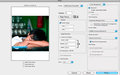
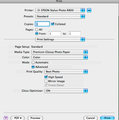
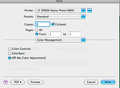
[thumb]//www.dpchallenge.com./portfolio_edit.php?IMAGE_ID=827273[/thumb] |
|
|
|
10/12/2009 11:12:26 AM · #16 |
Next is to try having the printer manage the colours and select the printer profile in the printer driver.
Everything in the screenshots looks good for PS managing the colours though I'm not familiar with the R800 driver. Is there another setup screen in the driver where you have something set?
Are the drivers on the Canadian site different?
//www.epson.ca/cgi-bin/ceStore/support/supDetail.jsp?BV_UseBVCookie=yes&oid=30501&infoType=Overview
There is an FAQ section that may have some info as well.
Message edited by author 2009-10-12 11:16:16. |
|
|
|
10/12/2009 05:36:04 PM · #17 |
Thanks for the response
Yes, the Canadian drivers appear to be the same bundle as the US batch (except a slightly different accent LOL)
This seems to be a vexing problem for a lot of people - (and some say they have no trouble at all).
I have one last thing to try that I have stumbled on - I will give it a try and get back to the forum if it works.
Message edited by author 2009-10-12 17:38:45. |
|
Home -
Challenges -
Community -
League -
Photos -
Cameras -
Lenses -
Learn -
Help -
Terms of Use -
Privacy -
Top ^
DPChallenge, and website content and design, Copyright © 2001-2025 Challenging Technologies, LLC.
All digital photo copyrights belong to the photographers and may not be used without permission.
Current Server Time: 12/25/2025 11:34:35 AM EST.




