| Author | Thread |
|
|
05/17/2008 10:05:35 PM · #1 |
Hi there...
Just reinstalled Photoshop CS3... I've calibrated my monitor using my Huey and started opening up some RAW files I took yesterday using my D200...
I've never had this problem before; the pictures look great on the camera LCD, pretty much the same in Bridge, but open them in Camera RAW and the colours all get messed up really badly (particularly blues and cyans, which all turn a very bright purple/magenta)...
Has anyone else had a similar problem? Or know what I might do to fix this? |
|
|
|
05/18/2008 12:56:15 AM · #2 |
| bump... I've been messing with different colour profiles in photoshop and in windows... can't seem to get it right... |
|
|
|
05/18/2008 01:10:51 AM · #3 |
Make sure all updates are loaded up. Do you still have Adobe Gamma on?
Message edited by author 2008-05-18 01:13:05.
|
|
|
|
05/18/2008 01:40:24 AM · #4 |
Switch to a Nikon D300. Then you won't have any problems with purple. ;)
D300 lacking purple
|
|
|
|
05/18/2008 01:53:13 AM · #5 |
Originally posted by Mick:
Switch to a Nikon D300. Then you won't have any problems with purple. ;)
D300 lacking purple |
haha... cheers Mick... just what I need :p...
I've managed to get photoshop back into the desired colours by using the Huey profile (no colour conversion in PS) but still ACR and save for web are killing me... |
|
|
|
05/18/2008 01:56:59 AM · #6 |
Originally posted by faidoi:
Make sure all updates are loaded up. Do you still have Adobe Gamma on? |
Where can I turn that bad boy off?
|
|
|
|
05/18/2008 02:11:15 AM · #7 |
Originally posted by shalrath:
Originally posted by faidoi:
Make sure all updates are loaded up. Do you still have Adobe Gamma on? |
Where can I turn that bad boy off? |
This may help: How to remove Adobe gamma - on Windows 2000/XP/Vista
|
|
|
|
05/18/2008 02:21:57 AM · #8 |
Thanks for the post, I have had a similar problems. My bridge and PS CS3 have been changing the color of my images automatically when I open up a file in either. I ecently installed eye-one I will try to shut the gamma off.
did this work for you?
|
|
|
|
05/18/2008 02:24:05 AM · #9 |
| Adobe Gamma was already off on my machine it seems... and I'm still having problems... any more ideas? |
|
|
|
05/18/2008 02:25:45 AM · #10 |
| Have you turned it off since calibrating? Do you let the monitor warm up before calibrating? |
|
|
|
05/18/2008 02:37:00 AM · #11 |
| Yes, I tried to find Adobe Gamma and it seems it hasn't been starting since I installed the Huey software. As recommended I gave the monitor a good 10 mintues or so to warm up before calibrating. The only display issues seem to be in ACR and save for web... maybe they have separate profile settings that I can't find? |
|
|
|
05/18/2008 02:37:01 AM · #12 |
Originally posted by shalrath:
Adobe Gamma was already off on my machine it seems... and I'm still having problems... any more ideas? |
I would uninstall PS3 and your Huey software. Get the machine and monitor back to a clean state. Then I'd reinstall them in the same order that you used originally... carefully. :)
Mick
|
|
|
|
05/18/2008 02:49:16 AM · #13 |
| Could be the way forward, Mick... nothing I've tried seems to work here... |
|
|
|
05/18/2008 02:59:09 AM · #14 |
You need to check what the preference is set to when opening in ACR. It can be set to open as auto or default. ACR may be using some funky profile when reding the default for the camera also.
Look under Camera RAW preferences while in Bridge. There is some prefs for "default to camera serial number," etc., then open a RAW shot and go to the little dropdown "menu" icon by BASIC, and above all the settings and see what it set to. It may be picking a file. You can "reset to RAW defaults" or make your own and/or which file to use. I am guessing something in one of those areas is not set right.
There is a very good book about ACR and CS3 by Bruce Fraser.
after that I would see which profile PS3 is opening/converting your files to. either sRGB or AdobeRGB...not the monitor profile.
Message edited by author 2008-05-18 03:02:47.
|
|
|
|
05/18/2008 03:01:37 AM · #15 |
whoops
Message edited by author 2008-05-18 03:01:54.
|
|
|
|
05/18/2008 03:24:31 AM · #16 |
Originally posted by dacrazyrn:
You need to check what the preference is set to when opening in ACR. It can be set to open as auto or default. ACR may be using some funky profile when reding the default for the camera also.
Look under Camera RAW preferences while in Bridge. There is some prefs for "default to camera serial number," etc., then open a RAW shot and go to the little dropdown "menu" icon by BASIC, and above all the settings and see what it set to. It may be picking a file. You can "reset to RAW defaults" or make your own and/or which file to use. I am guessing something in one of those areas is not set right.
There is a very good book about ACR and CS3 by Bruce Fraser.
after that I would see which profile PS3 is opening/converting your files to. either sRGB or AdobeRGB...not the monitor profile. |
Now, your ACR colour space suggestion appears to be correct... however, in ACR there are only the four standard colour spaces, my monitor profile does not exist... Is there any way I can get that into ACR? |
|
|
|
05/18/2008 08:09:56 AM · #17 |
| bumpity bump... reinstalling has set it all back to random colour profiles again... everything is messy... can't even get PS to display the correct colours now... argh... anyone? |
|
|
|
05/18/2008 01:29:52 PM · #18 |
Which color space was your camera using when you took the photo? My 5D has two options--sRGB or Adobe RGB. I have it set to use sRGB.
What color space do you have selected in ACR? Does it match your camera setting? Mine is set to sRGBIEC61966-1.
|
|
|
|
05/18/2008 07:14:07 PM · #19 |
| The camera is set to sRGB... as is ACR, this has never been a problem until now... |
|
|
|
05/18/2008 07:34:53 PM · #20 |
Here is a shot of the dropdown menu I was referring to.
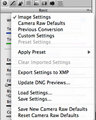
Click It
Mine sets to Image settings, but you can see that there a re few others that may be messing you up....especially PREVIOUS SETTING
Under that menue is that Auto "button," what happens when you click that?
Look under the little camera icon there also (Camera Profiles), something may be amiss there too. Mine defaults itself back to ACR 2.4, since that is where the D70 profile came from. But mine also shows the ACR 4.4 and one called EMBEDDED.
|
|
|
|
05/19/2008 06:59:52 AM · #21 |
I've only got one camera profile...
The trouble I think lies in that ACR only opens in sRGB and will not use my monitor profile. Both photoshop and bridge are able to use the monitor profile and display the colours correctly.
Anyone know of a way to get ACR to display using my monitor profile? |
|
|
|
05/20/2008 01:14:57 AM · #22 |
you should not being using your monitor profile to edit photos WITHIN PS or ACR, it should be only set as your monitor (is it? and is it accurate?). Most either use sRGB or AdobeRGB.
You really do need to read Real World Camera Raw with Adobe Photoshop CS by Bruce Fraser
|
|
|
|
05/20/2008 04:07:44 AM · #23 |
| Okay... but if I use sRGB within photoshop all my colours get messed about as I said. So if I shouldn't use my monitor profile, how can I get accurate colours in PS or ACR? |
|
|
|
05/20/2008 03:20:01 PM · #24 |
When you take a RAW photo, the camera embeds a jpeg preview using the current camera jpeg settings; this is what you see when you view the image on your lcd. When you open the photo in ACR / LR, the converter chucks the Nikon preview and interprets the image data according to its own colour profile. Something along those lines, anyways.
If you want it to look exactly as it did on your LCD, shoot jpeg or do your RAW conversions with Capture NX...
Hmm, re-reading everything and this probably isn't the problem if everything was working fine before the reinstall...
Message edited by author 2008-05-20 15:24:26. |
|
Home -
Challenges -
Community -
League -
Photos -
Cameras -
Lenses -
Learn -
Help -
Terms of Use -
Privacy -
Top ^
DPChallenge, and website content and design, Copyright © 2001-2026 Challenging Technologies, LLC.
All digital photo copyrights belong to the photographers and may not be used without permission.
Current Server Time: 05/12/2026 08:59:55 AM EDT.




