| Author | Thread |
|
|
02/27/2008 12:01:38 PM · #1 |
I've noticed that sometimes in photoshop when i save for web my pictures come out nowhere near the image i'm looking at on the screen. I've noticed that differant 'proof setups' change the appearance of an image dramatically, so which one am i supposed to be using to edit an image for DPC? *I'm* using a mac, but i'm sure the majority of viewers are viewing and voting on PC's, so should i be looking at my image using Windows RGB? I'm editing in 16-bit RGB 90% of the time, if that matters. What 'proof setup' is "save for web" saving in? what difference, if any, is there in the different web browsers?
I'm so confused, and re-reading that, i think it shows. |
|
|
|
02/27/2008 12:18:04 PM · #2 |
Your final image should be in the sRGB colour space.
Convert (not assign) to this profile just before saving for web. Also, change the mode to 8 bits/channel though save for web seems to be able to handle 16 bit / channel images pretty well. The final outcome from sfw is 8 bits/channel.
This colour space is narrower than others so it is best to do your editing in another colour space like Adobe RGB 1998 to avoid introducing artifacts during processing. It's also good to edit in 16 bit/channel for this same reason.
|
|
|
|
02/27/2008 12:28:56 PM · #3 |
This is SUCH a sore spot for me too! I use Photoshop CS3, and my colors are getting TOTALLY whacked out when I save them small. They turn red / magenta, and its not about the color space because both my camera and my color profile are set to sRGB. I have tried everything -- all the suggestions about the 8-bit, the converting the profiles. I've read alot. All I know is that I'm not alone, and no one seems to know what to do about it. I am having a photo in the Color on Color challenge that I think is really taking hits because of this problem. It's one of my favorite photos ever, and its scoring 5.9. I messed with the original to where the resized version looked okay on my home monitor, but at work, sure 'nuff, it looks bright red. Totally weird.
I don't know what to do!
Message edited by author 2008-02-27 12:30:39. |
|
|
|
02/27/2008 12:32:11 PM · #4 |
Sandy,
The problems you are having are usually related to calibration issues. Is your home monitor calibrated? Have you tried using the soft proofing in PS to see what the image will look like outside PS?
|
|
|
|
02/27/2008 12:34:21 PM · #5 |
if you're shooting RAW and using lightroom for conversion - check your lightroom export-colorspace settings. it defaults to ProPhoto RGB. a space wider than adobe rgb. and since it's a RAW file. the info is there even though your camera is set to sRGB.
the colorspace settings on the camera itself - really only apply to JPEG captures i believe.
ETA - if your working space in PS is sRGB - but you have the color settings to use the embedded profile - you might actually be loading a different color space. i have PS set to prompt me when the color space differs from the working space. but you can chose not to get that prompt.
not sure that's your issue - but i have run into before after upgrading my PS version.
Message edited by author 2008-02-27 12:39:27.
|
|
|
|
02/27/2008 12:48:48 PM · #6 |
Ok, lets try this step by step in a "for idiots" mentality.
I took a shot in RAW. Opened in ACR, adjusted minimally. (color space says Adobe RGB (1998))
open in photoshop, adjust image size to 720 max dim. (per DPC rules)
ZERO other editing.
Save for web gives me this:
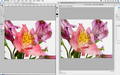
View it full size. I know its not a LOT of difference, but it is more drastic on other photos.
|
|
|
|
02/27/2008 12:54:27 PM · #7 |
I have a question about this too. When i try to save at 720 it wont let me upload. I thought that the photo size went up? It still only lets me save at 640 to upload.
Message edited by author 2008-02-27 15:27:56. |
|
|
|
02/27/2008 01:22:31 PM · #8 |
Originally posted by ZeppKash:
View it full size. I know its not a LOT of difference, but it is more drastic on other photos. |
Before you "Save for Web" do a "Edit->Convert to Profile->sRGB" and "Image->Mode->8-bits".
To proof the photo and emulate a Mac monitor on the web, turn on Proof Colors (check View->Proof Colors) and then select "Proof Setup->Mac RGB". (Use the Windows RGB to emulate a Windows monitor on the web.) I have a Mac but generally work up DPC entries while proofing as a Windows monitor (Windows RGB) and making the photo as dark as I consider acceptable on Windows - it will be lighter on a Mac monitor. |
|
|
|
02/27/2008 01:25:33 PM · #9 |
Lets make sure that before we post that we search for a thread that has already been started.
Just the keyword "SAVE FOR WEB" I was able to return all these results.
//www.dpchallenge.com/forum.php?action=search&id=327232 |
|
|
|
02/27/2008 01:28:29 PM · #10 |
Originally posted by ZeppKash:
I took a shot in RAW. Opened in ACR, adjusted minimally. (color space says Adobe RGB (1998))... |
That's exactly how images processed in AdobeRGB and then saved in sRGB look side-by-side. What many others have said is correct -- Save for Web saves the image in the sRGB space, so you must convert the image to that space first in order to see how it will look when you use the Save for Web command.
|
|
|
|
02/27/2008 01:34:26 PM · #11 |
| I have been having the issue of my photos receiving a color shift of a red/magenta when I convert to sRGB. I usually just add a hue/sat layer and shift it back to the color I originally intended. If you are experiencing a wash out of colors you probably are saving it for webb with the Adobe RGB colour profile, which does not show well on the web or windows. As others have stated you need to convert to profile before saving for the web to sRGB. After I convert I go to view and proof it on windows-monitor to see if it has had any color shift, which it usually does and then I make a final adjustment to fix the color. Hope it helps and I'm open for suggetions on my color shift issue, no one seems to know why it does that to me and I am dealing with a calibrated monitor. |
|
|
|
02/27/2008 01:46:10 PM · #12 |
Great info all, but this is PROBABLY not an sRGB space issue. The Save for web option has a hidden menu option that may actually alter your color space settings....
CS1 user steps. CS2/3 may be different.
Run Save for Web.
-- Pic opens in SFW dialog.
Right Click in the grey border area around the image (blotter or desktop, not the navigation pane)
Confirm that Use Document Color Profile is selected. |
|
|
|
02/27/2008 01:54:05 PM · #13 |
Originally posted by Arcanist:
Great info all, but this is PROBABLY not an sRGB space issue. The Save for web option has a hidden menu option that may actually alter your color space settings....
CS1 user steps. CS2/3 may be different.
Run Save for Web.
-- Pic opens in SFW dialog.
Right Click in the grey border area around the image (blotter or desktop, not the navigation pane)
Confirm that Use Document Color Profile is selected. |
Remember though, that menu, like the "Proof Colors" in PS, is merely a preview and does not change the file information. |
|
|
|
02/27/2008 02:45:20 PM · #14 |
to the OP:
another thing I notice on my Mac, but have been too lazy to figure out the reason, is when "Proof Colors" is unchecked the gamma seems to be closer to Windows for any working color space. So, I'm not sure what color space I am viewing by default (I would think it would be my Calibrated Monitor setting but it doesn't appear to be) So, to view how my Mac will view the photo on the web I have to turn on "Proof Colors" and select "Monitor RGB" (or Mac RGB). I don't know if this is a PS setting or global Mac setting or if it can even be changed.
Message edited by author 2008-02-27 14:49:36. |
|
|
|
02/27/2008 02:53:24 PM · #15 |
Originally posted by Chinabun:
I have a question about this too. When i try to save at 720 it wont let me. I thought that the photo size went up? It still only lets me save at 640. |
For Member challenges ... the two Open Challenges are still limited to 640px/150kb. |
|
|
|
02/27/2008 03:00:10 PM · #16 |
| Some info here if it helps. |
|
|
|
02/27/2008 03:25:17 PM · #17 |
Originally posted by pointandshoot:
Originally posted by Arcanist:
Great info all, but this is PROBABLY not an sRGB space issue. The Save for web option has a hidden menu option that may actually alter your color space settings....
CS1 user steps. CS2/3 may be different.
Run Save for Web.
-- Pic opens in SFW dialog.
Right Click in the grey border area around the image (blotter or desktop, not the navigation pane)
Confirm that Use Document Color Profile is selected. |
Remember though, that menu, like the "Proof Colors" in PS, is merely a preview and does not change the file information. |
Did not know that it was a proof thing, but I did actually 'see' a color change in the photo I uploaded before and after making that change. |
|
|
|
02/27/2008 03:26:38 PM · #18 |
I am in a member challenge. Pet Portrait. and I meant to say it wont let me upload.
Originally posted by GeneralE:
Originally posted by Chinabun:
I have a question about this too. When i try to save at 720 it wont let me. I thought that the photo size went up? It still only lets me save at 640. |
For Member challenges ... the two Open Challenges are still limited to 640px/150kb. |
Message edited by author 2008-02-27 15:27:27. |
|
|
|
02/27/2008 03:29:48 PM · #19 |
Originally posted by Chinabun:
I am in a member challenge. Pet Portrait.
Originally posted by GeneralE:
Originally posted by Chinabun:
I have a question about this too. When i try to save at 720 it wont let me. I thought that the photo size went up? It still only lets me save at 640. |
For Member challenges ... the two Open Challenges are still limited to 640px/150kb. |
|
Are you sure, you didn't edit the short side to 720? That would give you one side too long, also files size is 200 kb for those. I have made the mistake of sizing to the wrong side before. Thats all I got. :P |
|
|
|
02/27/2008 03:40:39 PM · #20 |
No, because I first put in 720 and then when it doesnt submit, I just change it to 640. I even tried 680 or 700, still doesnt work. It does it to me on fotofight too.
Originally posted by jdannels:
Originally posted by Chinabun:
I am in a member challenge. Pet Portrait.
Originally posted by GeneralE:
Originally posted by Chinabun:
I have a question about this too. When i try to save at 720 it wont let me. I thought that the photo size went up? It still only lets me save at 640. |
For Member challenges ... the two Open Challenges are still limited to 640px/150kb. |
|
Are you sure, you didn't edit the short side to 720? That would give you one side too long, also files size is 200 kb for those. I have made the mistake of sizing to the wrong side before. Thats all I got. :P |
|
|
|
|
02/27/2008 03:42:11 PM · #21 |
Originally posted by Chinabun:
No, because I first put in 720 and then when it doesnt submit, I just change it to 640. I even tried 680 or 700, still doesnt work. It does it to me on fotofight too.
Originally posted by jdannels:
Originally posted by Chinabun:
I am in a member challenge. Pet Portrait.
Originally posted by GeneralE:
Originally posted by Chinabun:
I have a question about this too. When i try to save at 720 it wont let me. I thought that the photo size went up? It still only lets me save at 640. |
For Member challenges ... the two Open Challenges are still limited to 640px/150kb. |
|
Are you sure, you didn't edit the short side to 720? That would give you one side too long, also files size is 200 kb for those. I have made the mistake of sizing to the wrong side before. Thats all I got. :P |
|
What's the file size of the file you're trying to submit?
|
|
|
|
02/27/2008 03:52:12 PM · #22 |
| Make sure it's in RGB JPEG format. |
|
|
|
02/27/2008 03:57:15 PM · #23 |
originally it's 2880? I dont know exactly, i know it's over 2800 then when I resize it to 720 pixels and 160 pixels it won't work. and it is in RGB JPEG. Like I said it works when I resize to 640 and 140.
Originally posted by cpanaioti:
Originally posted by Chinabun:
No, because I first put in 720 and then when it doesnt submit, I just change it to 640. I even tried 680 or 700, still doesnt work. It does it to me on fotofight too.
Originally posted by jdannels:
Originally posted by Chinabun:
I am in a member challenge. Pet Portrait.
Originally posted by GeneralE:
Originally posted by Chinabun:
I have a question about this too. When i try to save at 720 it wont let me. I thought that the photo size went up? It still only lets me save at 640. |
For Member challenges ... the two Open Challenges are still limited to 640px/150kb. |
|
Are you sure, you didn't edit the short side to 720? That would give you one side too long, also files size is 200 kb for those. I have made the mistake of sizing to the wrong side before. Thats all I got. :P |
|
What's the file size of the file you're trying to submit? |
|
|
Home -
Challenges -
Community -
League -
Photos -
Cameras -
Lenses -
Learn -
Help -
Terms of Use -
Privacy -
Top ^
DPChallenge, and website content and design, Copyright © 2001-2026 Challenging Technologies, LLC.
All digital photo copyrights belong to the photographers and may not be used without permission.
Current Server Time: 05/12/2026 10:12:58 PM EDT.




