| Author | Thread |
|
|
08/13/2007 01:12:29 PM · #1 |
|
I just bought a second monitor. Thought I could just plug it in and go, cause When I open display properties I'm offered a choice of monitors. But I only have one monitor cable port. Do I just need a splitter of some sort or something more? |
|
|
|
08/13/2007 01:14:11 PM · #2 |
A little more information may be necessary here. Are you using a Mac or a PC. I'm guessing PC so the following doesn't apply to Mac.
If you have a graphics card which only supports one monitor, you'll either have to upgrade your graphics card to one that supports dual monitors, or add a second card. Either is an option depending on your circumstances, but most computers don't come ready to handle two monitors.
Good luck! |
|
|
|
08/13/2007 01:14:12 PM · #3 |
|
Yes, you either need a video card that supports 2 monitors or add another video card inside your computer. You can then use both video cards at the same time. |
|
|
|
08/13/2007 01:15:07 PM · #4 |
|
|
|
08/13/2007 01:15:16 PM · #5 |
Originally posted by BlueZamia:
I just bought a second monitor. Thought I could just plug it in and go, cause When I open display properties I'm offered a choice of monitors. But I only have one monitor cable port. Do I just need a splitter of some sort or something more? |
hey
if your pc video card is integrade you cant put the second monitor.
you maybe need a new video card |
|
|
|
08/13/2007 01:15:46 PM · #6 |
yes, you can do that by using "VGA-Y Cable or VGA-Splitter". You can get it for about $6. This has one piece that goes in your computer and gives two output and you can connect your two monitors to each of them. This would share your screen on two monitors.
Added URL: VGA- Y Cable.
Message edited by author 2007-08-13 13:16:43. |
|
|
|
08/13/2007 01:19:08 PM · #7 |
Originally posted by pgirish007:
yes, you can do that by using "VGA-Y Cable or VGA-Splitter". You can get it for about $6. This has one piece that goes in your computer and gives two output and you can connect your two monitors to each of them. This would share your screen on two monitors.
Added URL: VGA- Y Cable. |
But then you get the same thing on both monitors. Is this what you want or you want to EXPAND your desktop? |
|
|
|
08/13/2007 01:24:17 PM · #8 |
Originally posted by candlerain:
Originally posted by pgirish007:
yes, you can do that by using "VGA-Y Cable or VGA-Splitter". You can get it for about $6. This has one piece that goes in your computer and gives two output and you can connect your two monitors to each of them. This would share your screen on two monitors.
Added URL: VGA- Y Cable. |
But then you get the same thing on both monitors. Is this what you want or you want to EXPAND your desktop? |
I guess what she is pointing is that she is seeing two monitor settings in the display properties and wanted to see if she can use two monitors. |
|
|
|
08/13/2007 01:24:48 PM · #9 |
I can expand my desk top onto the television in my room by simply connecting an "S" cable.
I do this for music sometimes as my computer speakers are crap. |
|
|
|
08/13/2007 01:25:42 PM · #10 |
As said before, you need a card that supports dual monitors. You can usually get a pretty cheap card that does it, it will just have two monitor outputs on the back and fits into one of the PCI/PCIe card slots on your motherboard (will require you to open it up).
|
|
|
|
08/13/2007 01:28:08 PM · #11 |
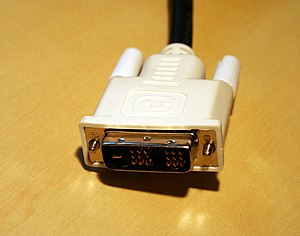
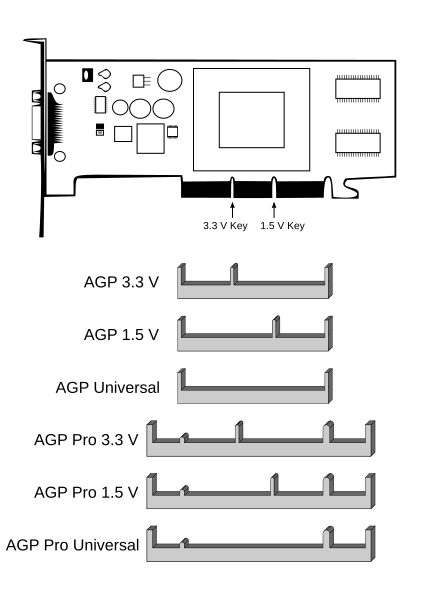
You'll also need to pay attention to what type of video card you currently have (AGP or PCI Express), and replace it with a like kind. Also, your monitor may have a VGA or a DVI connector or both. Your video card will likely have one or the other.
Here's some reference images from WikiPedia:
VGA Connector:

DVI Connector:
AGP card slot:
PCI-Express card slots:
 |
|
|
|
08/13/2007 01:30:22 PM · #12 |
Before buying a card, you'll need to find out what type of card your computer supports.
3 current standards are:
PCI (almost all current computers can use PCI video cards, but not the fastest option)
PCIe
and AGP (this one is fading, but still present).
If you can't find out, post the model of computer you have here and someone can probably find the info for ya.
Message edited by author 2007-08-13 13:31:19.
|
|
|
|
08/13/2007 01:51:08 PM · #13 |
I'm pretty sure its PCI. Will check.
All I want to do is spread Photoshop over 2 screens So I cna have my photo on the large moniter and all the pallets and cnotrolls on the small one. |
|
|
|
08/13/2007 02:01:39 PM · #14 |
Does your video card have 2 outputs?
It can be either have 2 VGA or a mix of 1 VGA and 1 DVI (see smurfguy's poting)
If it does, you're luck, then you might only have to get a VGA to DVI adapter from RadioShack for a few $$$ and you're set.
All you then have to do is go to the display properties on your desktop and activate the second monitor.
If you only have one monitor output: then you'll have to get a separate video card. lots of postings here cover the different card types.
I assume you run at least XP?
Originally posted by BlueZamia:
I'm pretty sure its PCI. Will check.
All I want to do is spread Photoshop over 2 screens So I cna have my photo on the large moniter and all the pallets and cnotrolls on the small one. |
Message edited by author 2007-08-13 14:01:59. |
|
|
|
08/13/2007 02:12:39 PM · #15 |
Originally posted by BlueZamia:
I'm pretty sure its PCI. Will check.
All I want to do is spread Photoshop over 2 screens So I cna have my photo on the large moniter and all the pallets and cnotrolls on the small one. |
PCI video cards are very old. It could be PCI, but it's more likely PCI-Express or AGP.
The most certain way to find out is to open the computer and take a look. While the computer device manager will differentiate between PCI and AGP, I don't think it will tell between PCI and PCI-Express, since the difference is supposed to be transparent to the OS.
Edit: Determine what type of card (PCIe, PCI, AGP) and monitor cable (VGA, DVI), then get something like the following:
PCI with Dual VGA
PCIe with Dual DVI
AGP with Dual DVI
I'd recommend shopping at NewEgg, certainly online over local stores - RadioShack and even BestBuy will ream you with markup.
Message edited by author 2007-08-13 14:20:09. |
|
|
|
08/13/2007 06:33:13 PM · #16 |
Well, this is what I've got:

To my eye it looks like PCI-E.
The Computer is an HP. The generic upgrade instruction booklet says system is designed to provide 2 amps of+5 V power to each board.
The current monitor is connected with a 15 pin VGA cable.
I found the embedded System Info.

I can put the card in myself.
But I've always been handed the correct card. (My last job had a tech person who could answer my questions. Never thought I'd miss him.)
Thanks again for all suggestions. |
|
|
|
08/13/2007 07:19:18 PM · #17 |
What you have is a PCIe x16 slot. Find a card on //www.newegg.com that matches that slot and your budget with two montior outputs and you're all set to go. Just pop it in and enjoy the view.
And you got a 400D, nice.
|
|
|
|
08/13/2007 07:34:23 PM · #18 |
Thanks.
I feel safer now. |
|
Home -
Challenges -
Community -
League -
Photos -
Cameras -
Lenses -
Learn -
Help -
Terms of Use -
Privacy -
Top ^
DPChallenge, and website content and design, Copyright © 2001-2026 Challenging Technologies, LLC.
All digital photo copyrights belong to the photographers and may not be used without permission.
Current Server Time: 05/15/2026 09:54:00 PM EDT.




